Connect and Setup Sample Data
Connect to EC2 and Setup Sample Data
Step 1: Connect to EC2 Instance
- Wait for the EC2 instance to be in Running state.
- Copy Public IPV4 address
- Open your cmd or Powershell
- Move to folder have file migration-key.pem
cd C:\path\to\your\key\
- Run this command
ssh -i migration-key.pem ec2-user@[Public IPV4]
Step 2: Install MySQL Client
sudo yum update -y
sudo dnf install mariadb105
Step3: Create Sample Data in MySQL Connect to the MySQL database:
mysql -h [SOURCE-MYSQL-ENDPOINT] -u admin -p
# Enter password: MyPassword123!

Step4 Inside MySQL, create the sample tables and insert sample data:
USE sampledb;

CREATE TABLE employees (
    id INT PRIMARY KEY AUTO_INCREMENT,
    first_name VARCHAR(50),
    last_name VARCHAR(50),
    email VARCHAR(100),
    department VARCHAR(50),
    salary DECIMAL(10,2),
    hire_date DATE
);

INSERT INTO employees VALUES
(1, 'John', 'Doe', 'john.doe@company.com', 'IT', 75000.00, '2022-01-15'),
(2, 'Jane', 'Smith', 'jane.smith@company.com', 'HR', 65000.00, '2022-02-20'),
(3, 'Mike', 'Johnson', 'mike.johnson@company.com', 'Finance', 80000.00, '2022-03-10'),
(4, 'Sarah', 'Wilson', 'sarah.wilson@company.com', 'IT', 78000.00, '2022-04-05'),
(5, 'David', 'Brown', 'david.brown@company.com', 'Marketing', 70000.00, '2022-05-12');

CREATE TABLE departments (
    id INT PRIMARY KEY,
    name VARCHAR(50),
    manager_id INT,
    budget DECIMAL(12,2)
);

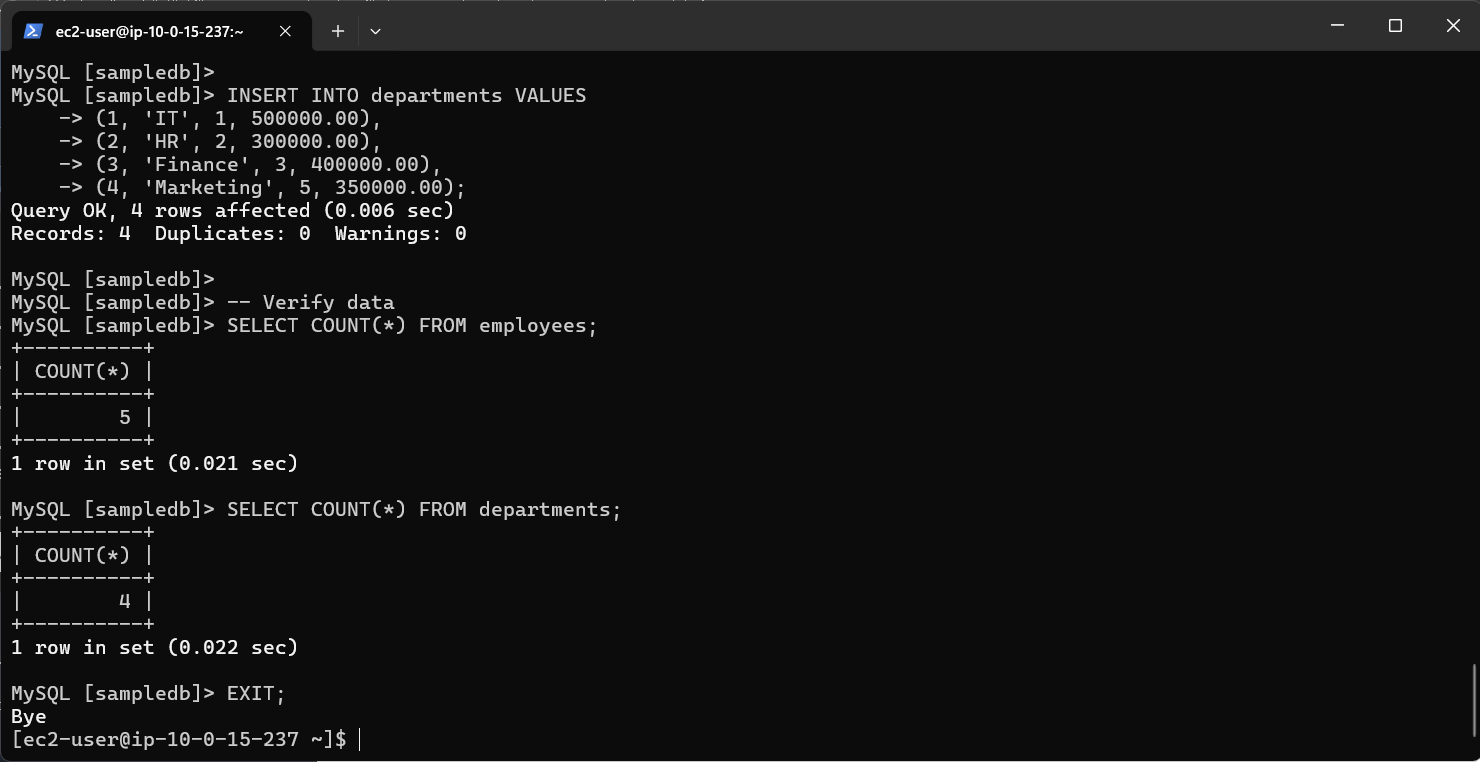
INSERT INTO departments VALUES
(1, 'IT', 1, 500000.00),
(2, 'HR', 2, 300000.00),
(3, 'Finance', 3, 400000.00),
(4, 'Marketing', 5, 350000.00);

-- Verify data
SELECT COUNT(*) FROM employees;
SELECT COUNT(*) FROM departments;
Step5: Finally, exit MySQL:
EXIT;